Server Setup
Prerequisites
The following softwares you will need to install are:
- Ollama
- Rust Programming Tools
To install ollama you can go to this link and download for your appropriate operating system.
To install Rust and Microsoft Visual Build Tools, you can follow these links:
Rust and Visual Studio Build Tools
Installing Dependencies
Now that you have setup Rust and VS Build Tools, you can now start installing the required dependencies. Using the following command:
cargo buildInstalling Ollama Models
To install a LLM model for your server to run you have to look through the ollama model registry here. Once you find the required model you can install it with the following command:
ollama pull (modelID)This will install the model of which you would like to run.
Recommended Models
Some recommended models for you to run if you are running this on a normal pc is:
llama3:7b for computers with a good GPU and RAM.
gemma3:270m for computers with a mid to weak GPU and low RAM.
Running the configuration wizard
To setup the server with the local configuration for your server to ensure the server and ollama can talk to each other follow these steps:
Step 1: To run the configuration wizard run the following command:
cargo run -- configYou will get a output like the picture below, here you can update the configuration of the server. 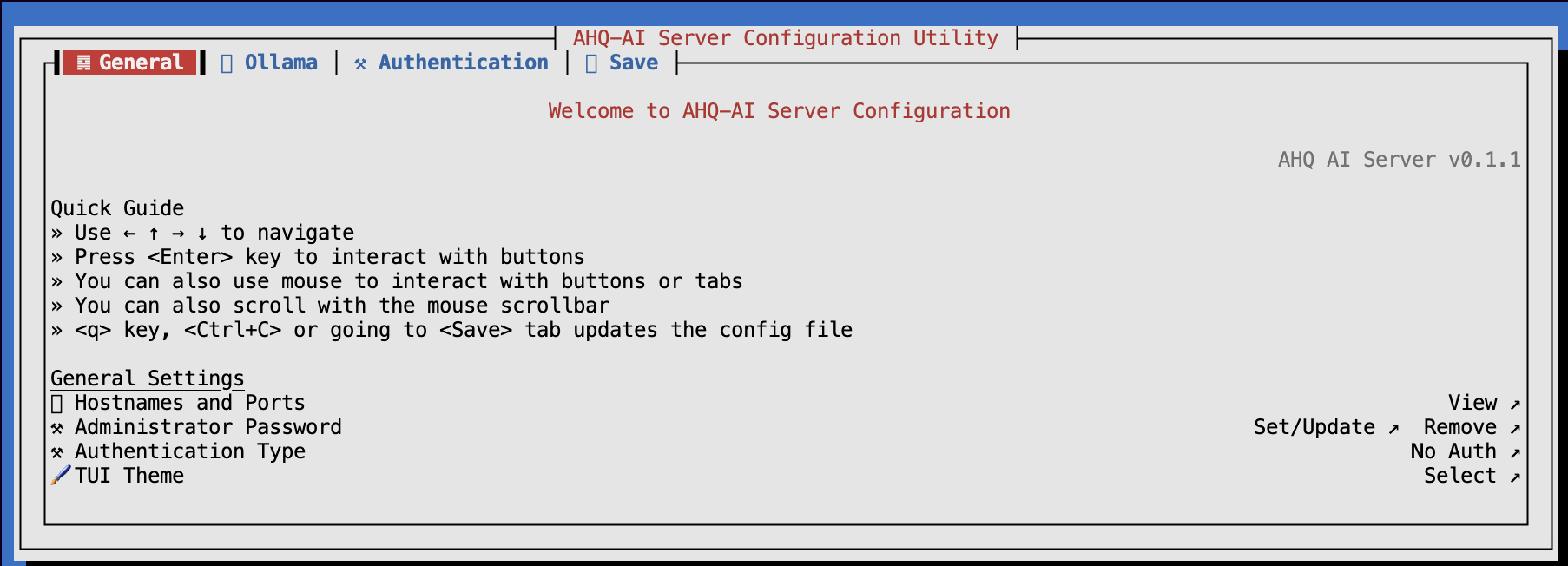
Step 2: To configure ollama use your arrow keys to navigate to the ollama section. 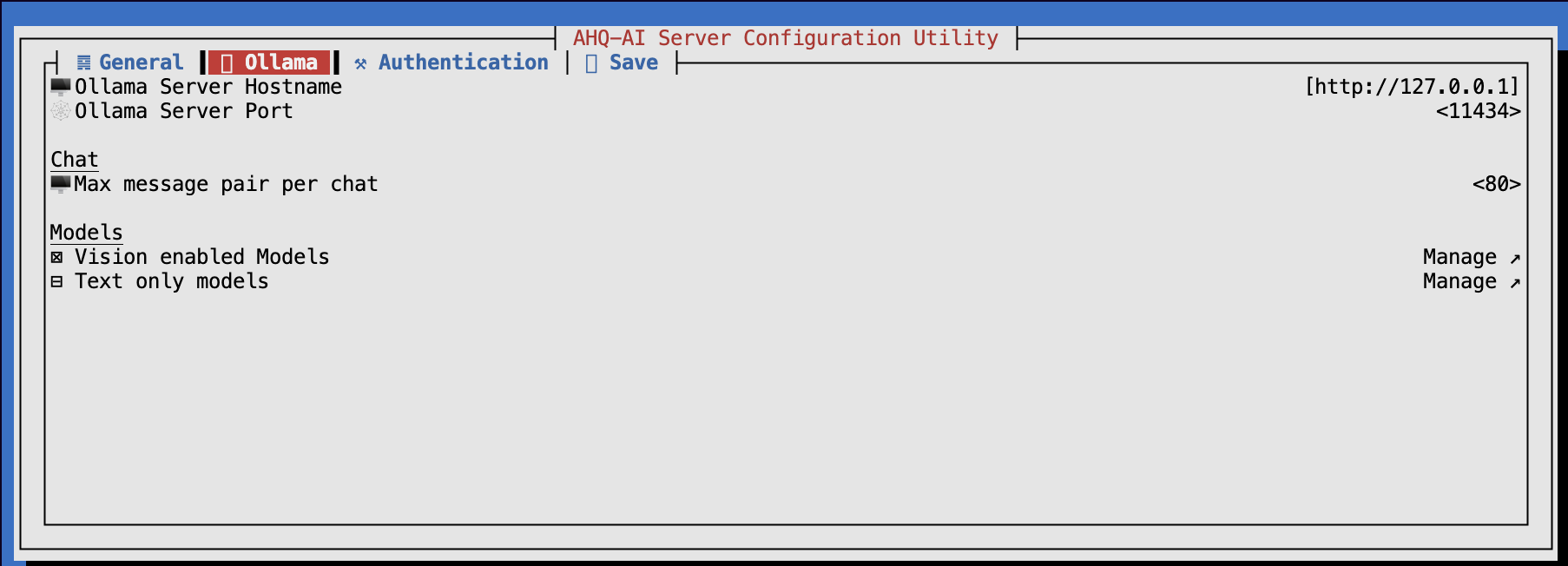
Then, select the hostname and the ports of the ollama server. You can find these out by running
ollama serveand updating the port by clicking enter on your keyboard. 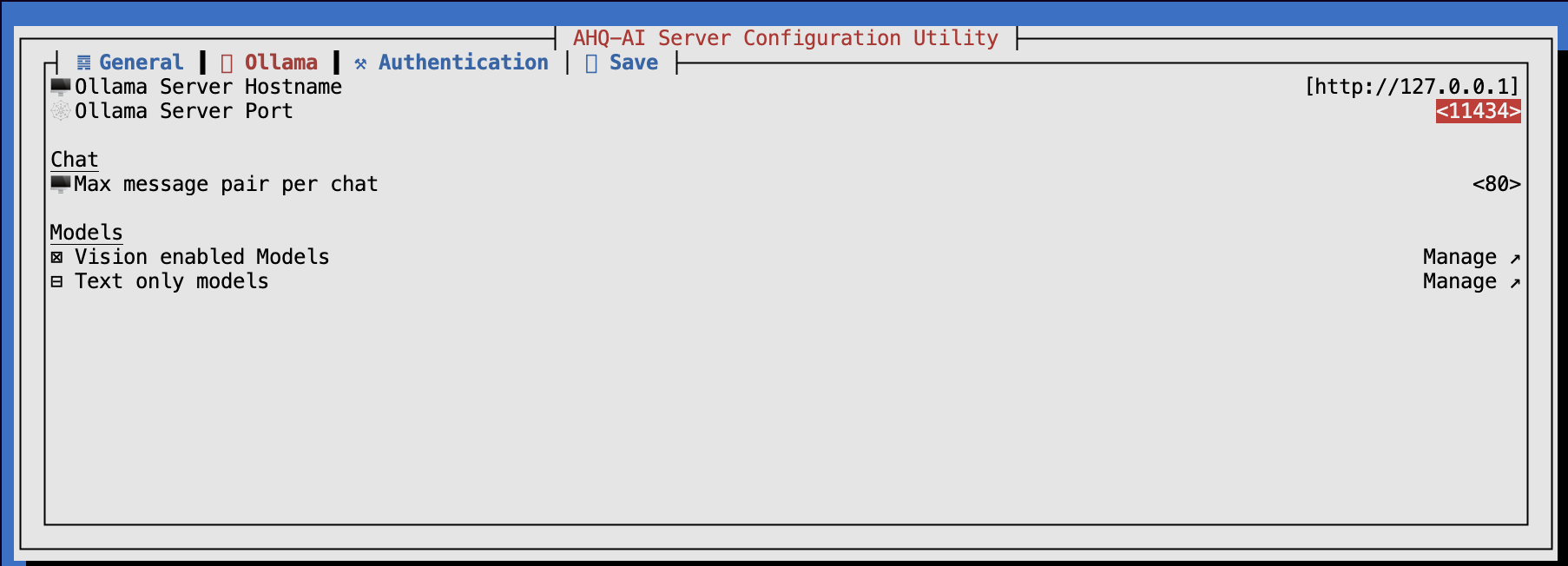
Step 3: If you want to update the number of messages you can update it with this variable. 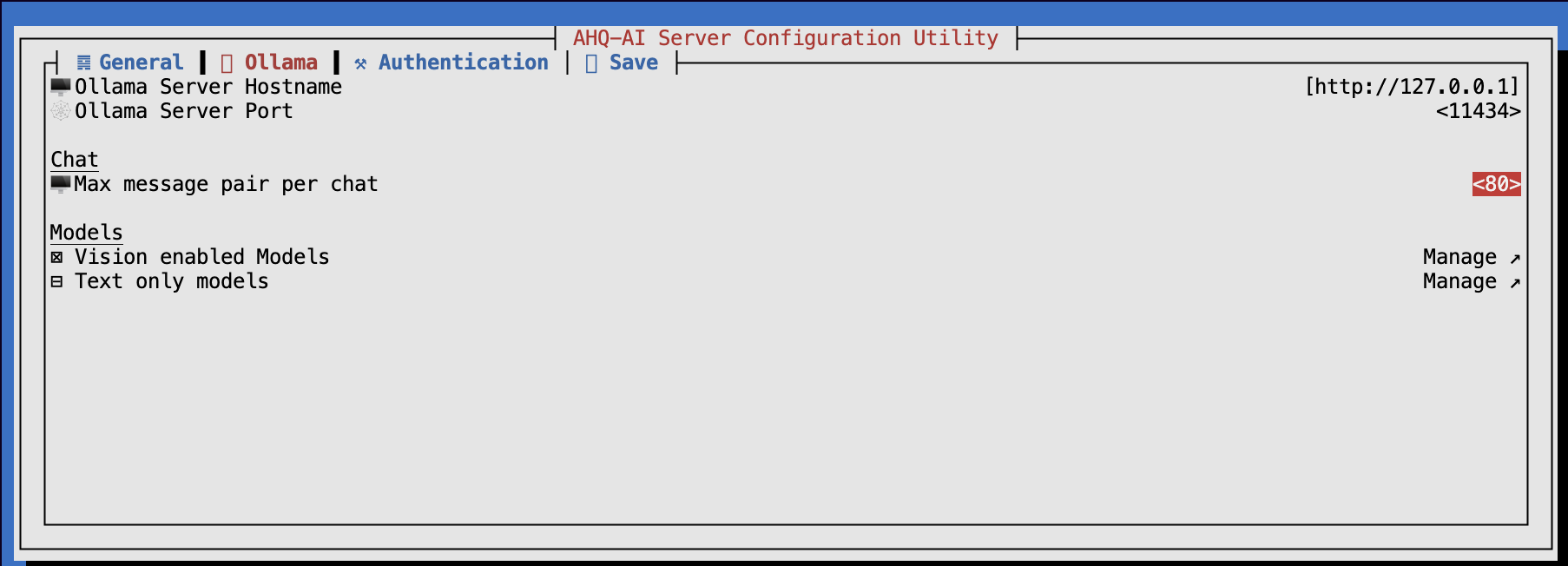
Step 4: To interact with your AI using images you will need to setup this feature. 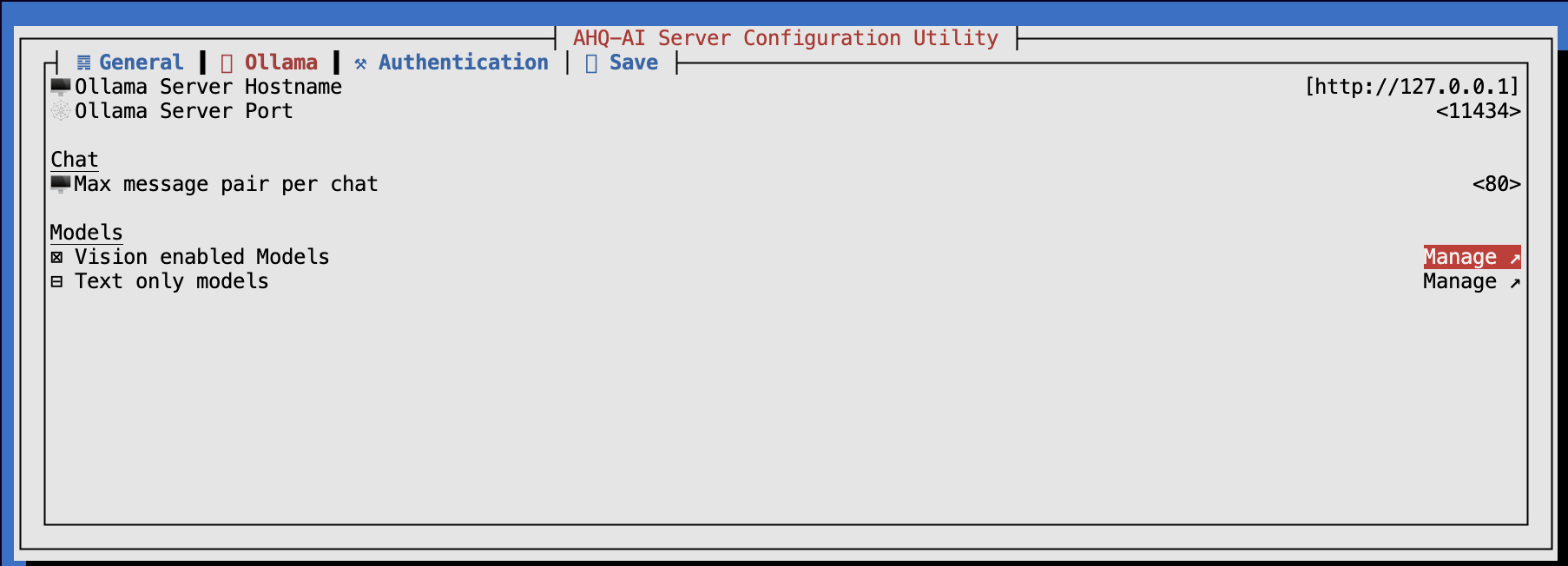
When you enter it you will be prompted to add a image model like llava:7b. 
Once you add it you can exit it and click done. 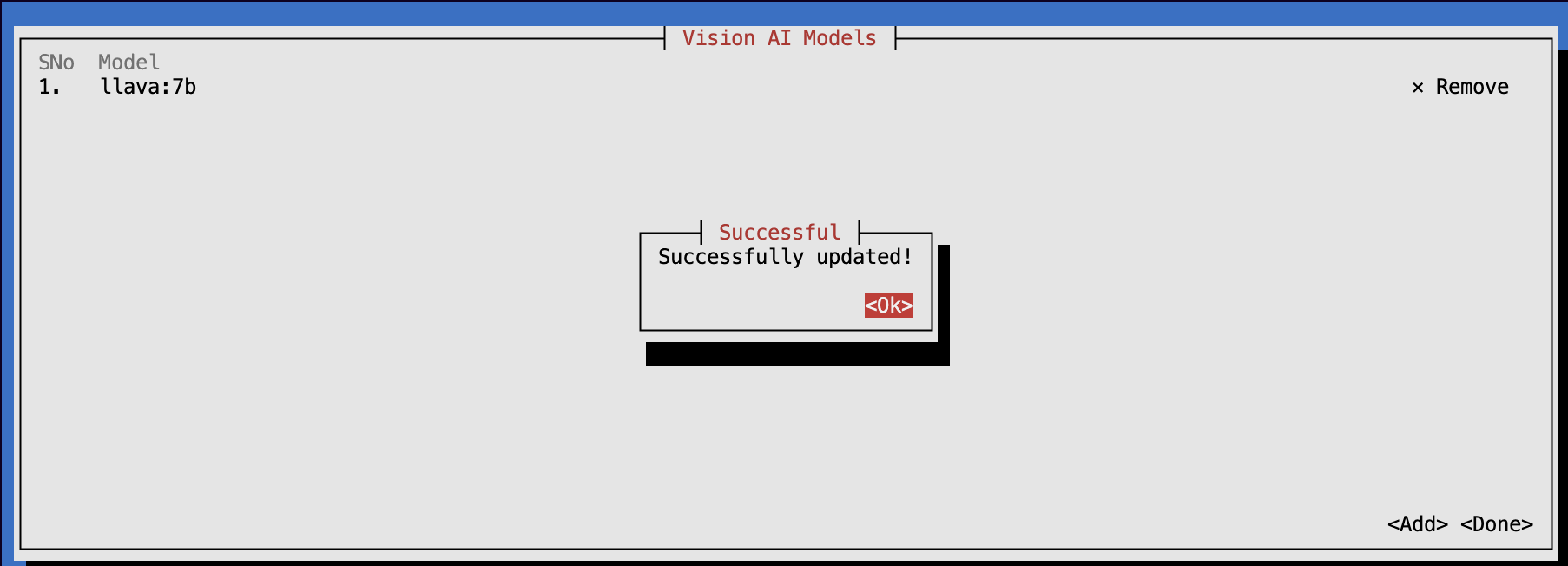
Step 5: To add a text model (required) to interact with the AI you will need to update this. 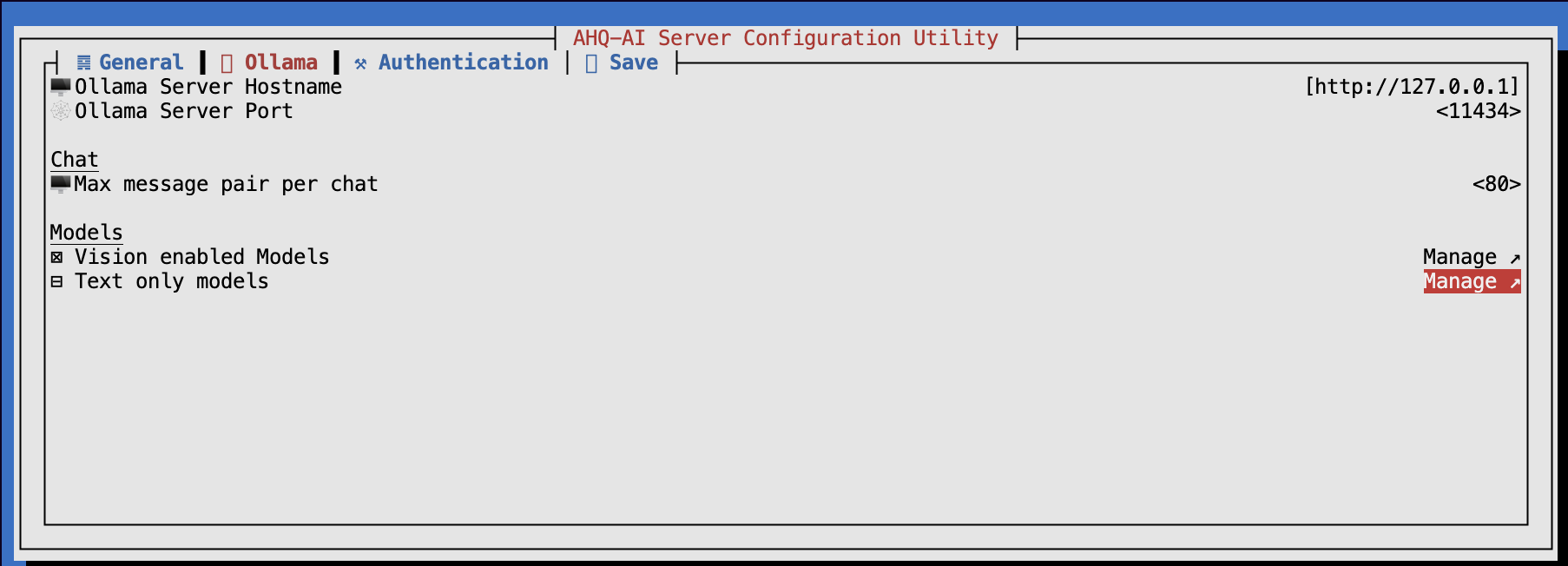
When you enter it you will be prompted to add a text model like llama3:7b 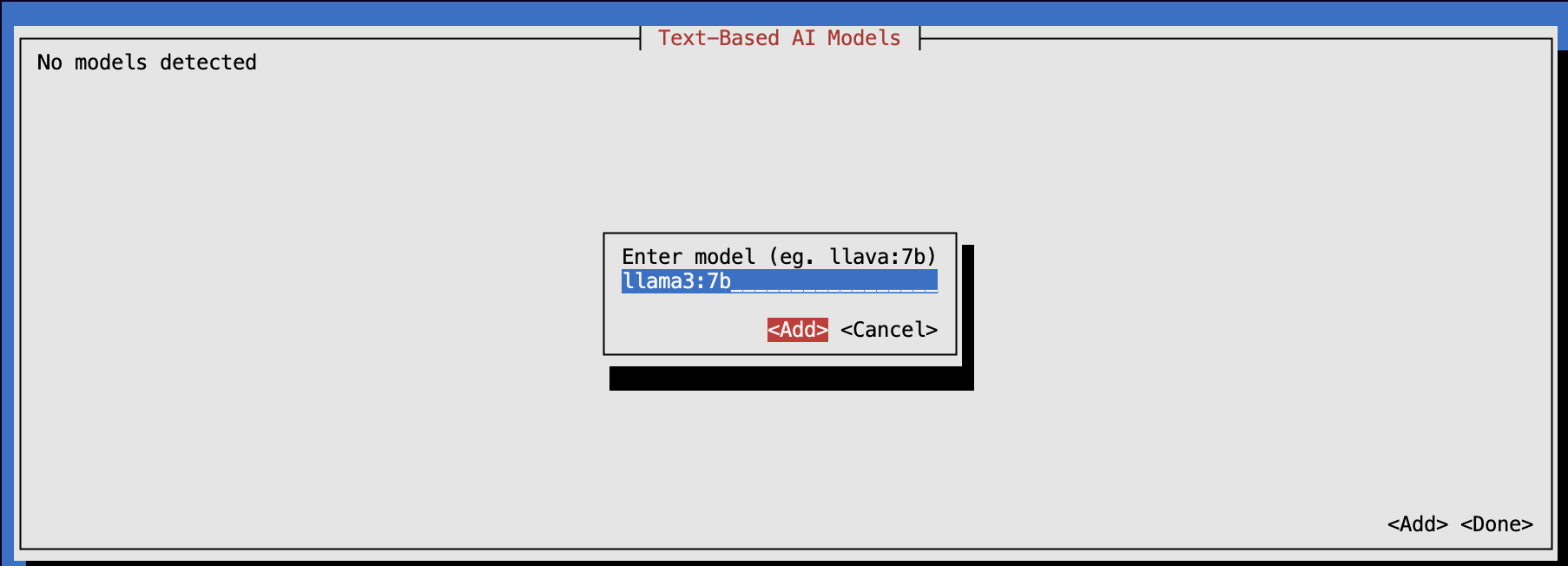
Once you add it you can exit it and click done. 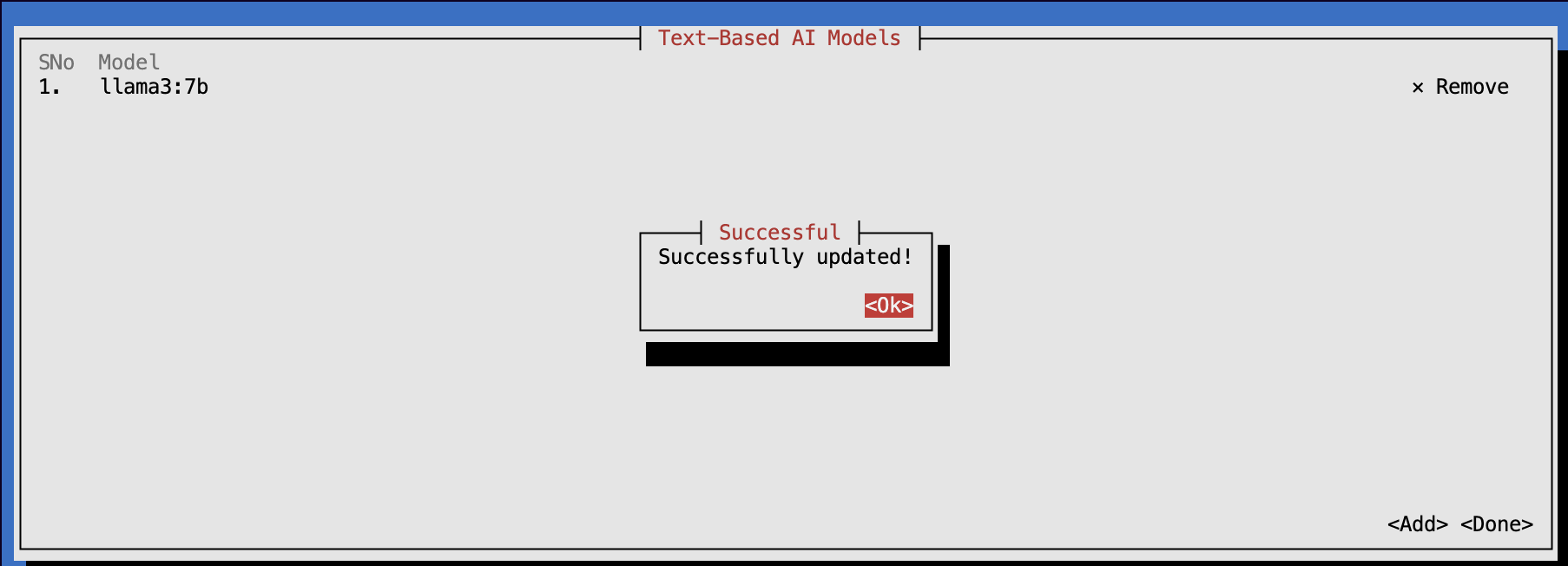
Step 6: You can setup the authentication to secure your AI server here. 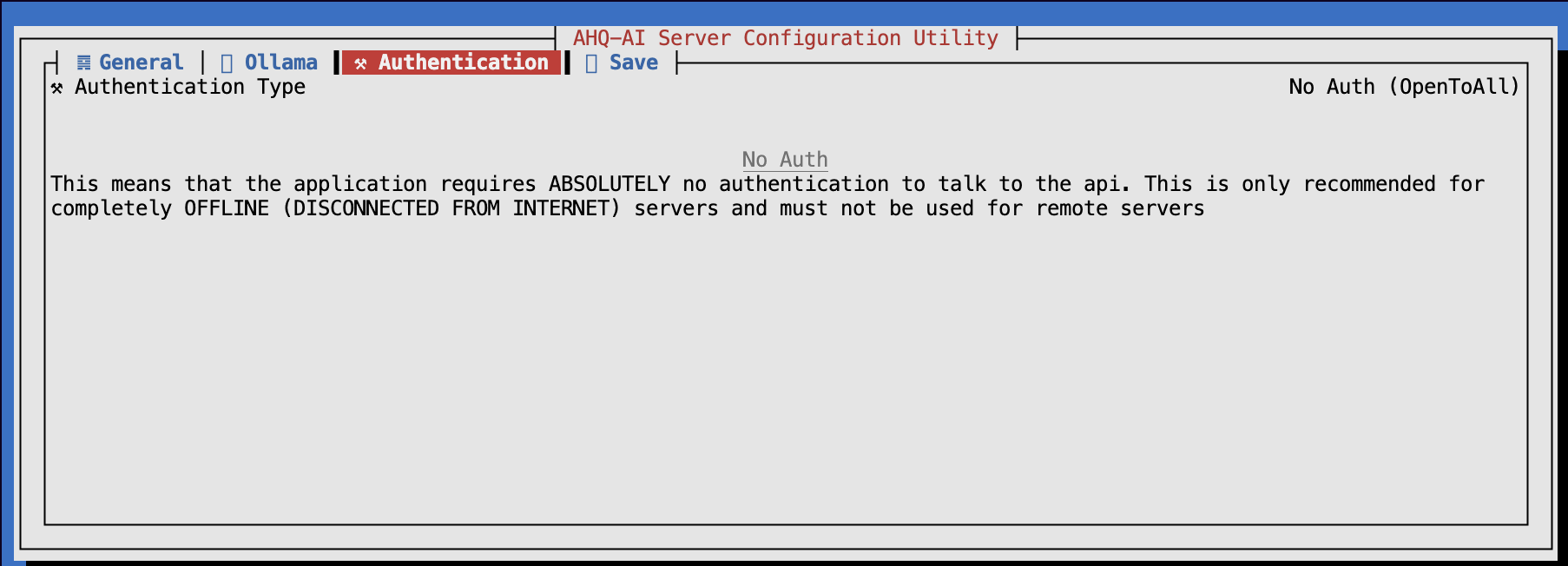
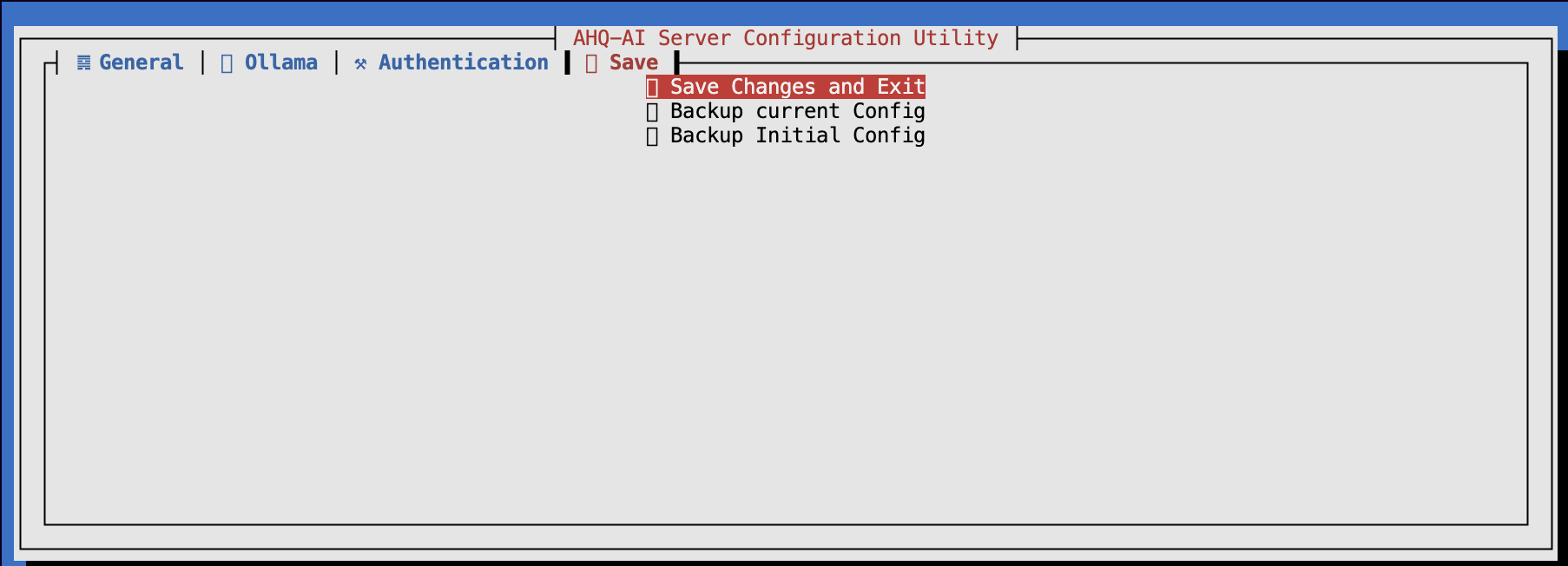
Step 7: Finally you can go to the save button and save your configuration.